
Google Reviews I’ve Left: Find and Manage Your Reviews
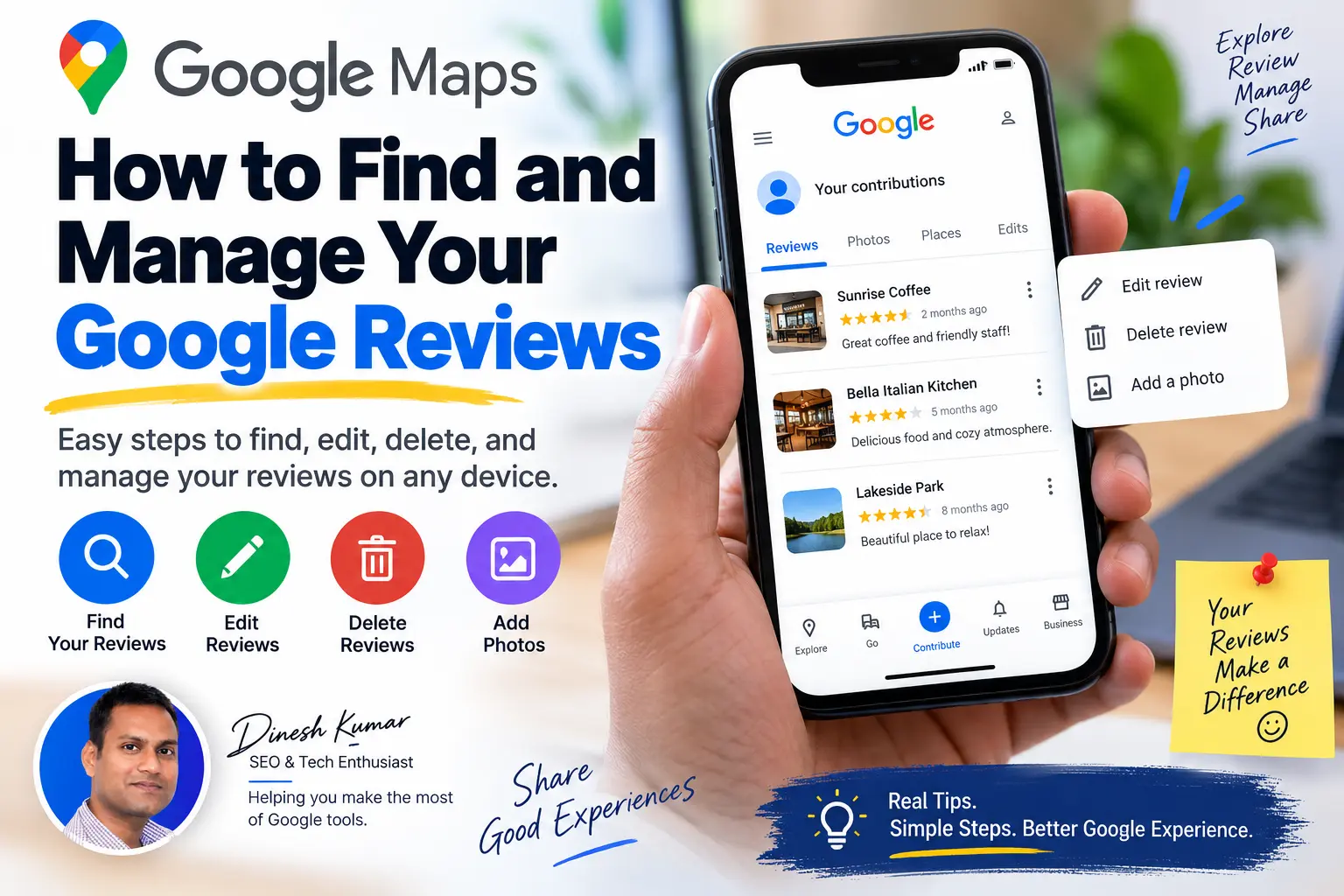
If you have written reviews on Google and cannot remember where they are, you do not need to search through old places one by one. Google Maps provides a place to view your contributions, including reviews you have posted, and you can use those contributions to edit or delete reviews and manage related photos.
This guide explains how to find and manage your Google reviews on a computer, Android phone, or iPhone. It also covers what to do when an old review is missing, how editing works, how to delete a review you wrote, and how photos connected with your contributions can be managed.
Find your reviews
Use Google Maps to locate reviews you have previously posted.
Edit or delete
Open one of your reviews and use the available management options.
Troubleshoot
Understand why a review may not appear where you expect it to.
How to Find and Manage Your Google Reviews
The exact layout of Google Maps can change over time, and the labels can vary slightly between devices. The important part is to use your signed-in Google account and open your Maps profile or contributions area.
On a computer
Open Google Maps
Sign in to the Google account you used when you posted the review.
Open your Maps contributions
In the Google Maps interface, open the menu and select Your contributions.
Choose Reviews
Open the reviews section to see reviews associated with your Maps contributions.
Select a review
Choose the review you want to inspect or manage. The available menu can include options to edit, delete, or add a photo.
On Android
On Android, open the Google Maps app while signed in to the account that posted the review. The current Maps app provides access to your profile and contributions from within the app.
Open Google Maps
Make sure you are signed in to the correct Google account.
Open your profile or contributions
Use the profile area or the Contribute section to access your Maps activity.
Open your reviews
Look through your contributions and select the review you want to manage.
On iPhone
The Google Maps app on iPhone also provides access to your Maps profile and contributions. The wording and placement of controls can change with app updates, so look for your profile, contributions, or reviews rather than relying on one exact screen layout.
Open Google Maps
Sign in using the Google account that you used to write the review.
Open your profile
Use the account/profile area to access your Maps profile and contributions.
Find the review
Open your reviews or contributions and select the review you want to manage.
How to See All the Reviews You Have Written
If you are looking for your Google review history, Google Maps is the place to start. Your Maps profile and contributions area are designed to show the content you have contributed, including reviews.
If a review is missing from the list, do not immediately assume that the business deleted it. There are several possibilities, including using a different Google account, a change in the place listing, moderation or policy enforcement, or a temporary display problem.
How to Edit a Google Review
On a computer, Google currently documents the process through Google Maps > Your contributions > Reviews. Select the review, open its menu, and choose Edit Review. After making your changes, submit the updated review.
On mobile, open the Google Maps app, access your profile or contributions, select the review, and use the review's menu to edit it. The exact placement can vary by app version.
You can change more than the written text
Editing a review is useful when your experience has changed, you want to correct a factual mistake, or you want to add context. Depending on the review interface, you can also update the rating associated with the review.
How to Delete a Google Review
On a computer, go to Google Maps, open Your contributions, select Reviews, find the review, and use its menu. Google currently lists Delete Review as an available option for your own review.
On a phone, open your Maps profile or contributions, select the review, and use the available review menu to delete it.
How to Add or Change Photos in a Review
Photos and reviews are both forms of user-generated content on Google Maps. Google provides ways to add photos to places and, from the review management interface, may provide an Add a Photo option for your review.
On a computer, Google documents the path through Your contributions and Reviews. Select the review, open its menu, and choose Add a Photo when that option is available.
You can also add photos from a place's Google Maps page. On supported places, open the place, find the photo area, and use the option to add photos or videos.
What Happens After You Edit or Delete a Review?
When you edit a review, the updated version replaces the version you previously posted. When you delete your review, you are removing your own contribution rather than asking the business to remove it.
Changes may not always appear instantly everywhere. If something looks unchanged immediately after an update, give Maps some time and then check again.
| Action | What it means | Who controls the action |
|---|---|---|
| Edit your review | You change the content or rating of a review you posted. | You, subject to Google's content policies. |
| Delete your review | You remove a review that you personally posted. | You. |
| Google removes a review | The content is removed through Google's moderation or enforcement processes. | Google. |
| Review is temporarily unavailable | The content may not currently be visible for a technical, moderation, account, or other reason. | Depends on the situation. |
Why Can't I Find My Google Review?
A missing review does not necessarily mean that a business removed it. If you cannot find a review you remember posting, work through the possibilities below before drawing conclusions.
1. You are using the wrong Google account
This is an easy mistake if you have more than one Google account. Check the account currently signed in to Google Maps and compare it with the account you used when writing the review.
2. The review was removed for a policy violation
Google says it moderates reviews and related user-generated content. Reviews can be removed when they violate Google's policies, including rules covering spam and inappropriate content.
3. The place listing has changed
A business can change its name, location information, or other listing details. That can make an older contribution harder to locate through the place page even though you remember the original business information.
4. The review is not currently displaying as expected
A temporary technical or synchronization issue can also cause content to appear differently from what you expect. Reopen Google Maps, verify your account, and check your contributions again.
5. You are looking at the business page instead of your contributions
Searching for the business and searching your own review history are two different tasks. If your goal is to find reviews I left on Google, start with your own Maps profile or contributions rather than searching individual businesses.
Common Reasons a Google Review May Not Appear
Different account
The review may belong to another Google account you use.
Policy moderation
Google may remove content that violates its Maps policies.
Place changes
The business listing may have changed since you posted the review.
Temporary issue
The review may not be displaying correctly at the moment.
Review deleted
You may have removed the review previously and forgotten about it.
Account or profile changes
Changes to your Maps profile or account can affect how contributions are presented.
How to Manage Your Google Review Activity
Managing Google reviews is easier when you treat your Maps profile as the central place for your contributions. Instead of trying to remember every business where you posted something, use your profile or contributions area to review your activity.
A practical review-management routine
- Sign in to the Google account you normally use for Maps.
- Open your Maps profile or contributions.
- Review your posted reviews and other contributions.
- Edit reviews when information needs to be corrected or updated.
- Delete reviews that you no longer want to keep.
- Check associated photos when you need to update or remove them.
- Review Google's current user-generated-content policies before posting new content.
Google also allows users to control how they appear publicly on Maps through their Maps profile settings. Depending on the current account features available to you, your public contributions can be associated with your Maps profile.
Understanding Google's Review Policies
Google reviews are public user-generated content. Google states that reviews are moderated and that content violating its policies may be removed.
This matters when troubleshooting a missing review. A review disappearing from a business page does not automatically establish that the business removed it. Google itself may remove content when it identifies a policy violation.
Reviews are most useful when they describe a genuine experience and provide relevant information to other people. Avoid content that could be considered spam, misleading, abusive, inappropriate, or otherwise prohibited under Google's policies.
Google Review FAQs
Can I see every Google review I've written?
Google Maps provides a way to access your contributions, including reviews. If you cannot find a particular review, first verify that you are signed in to the Google account that originally posted it.
How do I find my old Google reviews?
Open Google Maps, sign in to the appropriate Google account, and access your profile or contributions. From there, look for your reviews. Older reviews may be easier to find through your contribution history than by searching individual businesses.
Can I edit a Google review after posting it?
Yes. You can open a review you posted and use the available Edit Review option. After making your changes, submit the updated review.
Can I delete a Google review I wrote?
Yes. Your own review can be deleted through its review-management options in Google Maps.
Why is my Google review missing?
Check that you are using the correct Google account first. Other possibilities include policy-based removal, changes to the place listing, a temporary display problem, or the review having been deleted previously.
How long does a Google review take to appear?
Google moderates user-generated content, so visibility can depend on Google's systems and policies. If a review does not appear as expected, check your contributions and make sure the content follows Google's current policies.
Can a business delete my Google review?
A business does not have the same control over your review that you have over a review you personally posted. Businesses can use Google's reporting and removal-request processes when they believe content violates Google's policies. Google makes the moderation decision.
Can I change the rating without rewriting the entire review?
When you edit your review, Google provides the review-editing interface where you can update the information associated with your contribution, including the rating when the option is available.
Can I manage Google reviews from my phone?
Yes. Google Maps on Android and iPhone provides access to your profile and contributions. The exact menu names and placement can change as the app is updated.
Final Takeaway
Finding your Google reviews does not require remembering every business you have reviewed. Start with your Google Maps profile or contributions, where your reviews and other Maps activity can be accessed from the account that posted them.
From there, you can manage reviews you personally wrote, including editing or deleting them, and handle related photos when the relevant options are available. If an old review is missing, check the Google account first and then consider policy moderation, listing changes, or a temporary display issue.
Most importantly, remember the difference between managing your own review and reporting someone else's content. Those are separate processes, and Google controls moderation of user-generated content on its services.
Keep Your Google Reviews Organized
The easiest way to manage your Google review history is to use your Google Maps profile and contributions area regularly. That gives you one place to review what you have posted and make updates when needed.
Google Maps features and interface labels can change. If a menu appears differently on your device, use the current profile, contributions, and review-management options provided by Google Maps.