
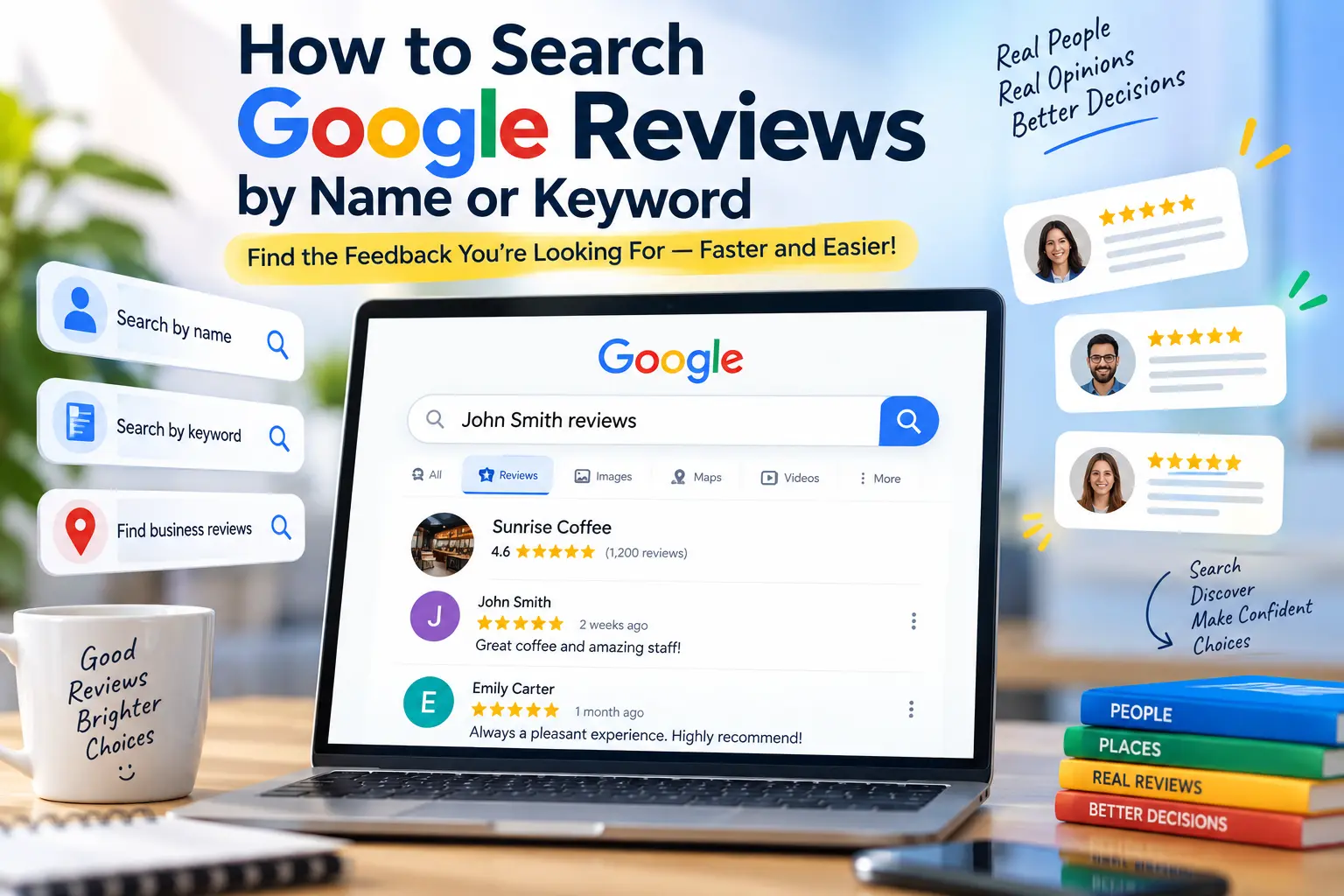
How to Filter Google Reviews by Keyword or Reviewer
Learn practical ways to find specific customer reviews on Google Maps using reviewer names, keywords, phrases, browser search, Google Search operators, review topics, and other efficient research techniques.
Google reviews can contain valuable information about a business, product, service, employee, location, or customer experience. But when a business has hundreds or thousands of reviews, finding one specific comment can be surprisingly difficult.
You may remember the reviewer's name, a phrase they used, a particular service they mentioned, or a problem such as “delivery,” “customer service,” “pricing,” or “appointment.” The challenge is knowing which search method is most likely to locate the information you need.
Google does not provide a universal search box that lets you search every Google review by reviewer name. However, you can often find specific reviews by opening the business in Google Maps, using available review-topic filters, searching loaded review text with your browser's Find function, or using carefully constructed Google Search queries.
Can You Search Google Reviews Directly?
The short answer is: not in the same way you search a normal Google webpage.
Google Maps allows users to browse reviews associated with a business profile. Depending on the business and the available interface, Google may also display review topics or specific aspects of a service. For example, certain service businesses can have review aspects such as price or other service attributes displayed as filters.
However, this should not be confused with a universal review database search where you can enter any person's name or any keyword and receive every matching review.
How to Search Google Reviews in Google Maps
If you already know the business you're researching, Google Maps is usually the best starting point because the reviews are connected directly to the business profile.
Open Google Maps
Go to Google Maps and search for the business, location, or place whose reviews you want to examine.
Confirm the Correct Business
Check the business name, address, category, website, and other identifying information before reviewing customer feedback. This is especially important when several businesses have similar names.
Open the Reviews
Select the review section or review count to view customer feedback. Google provides businesses with tools for reading and managing reviews through their Business Profile.
Check Available Review Filters
Look for sorting options or topic/aspect filters. The exact options can vary depending on the business and Google's current interface.
Search the Visible Review Text
If you need to locate a word or name in the reviews currently displayed on the page, use your browser's built-in Find feature.
How to Use Ctrl+F or Find to Search Google Reviews
One of the simplest techniques is using your browser's built-in text search.
On Windows, press Ctrl + F. On Mac, press Command + F. Enter the name, phrase, or keyword you want to locate.
Useful For
- Searching currently loaded review text
- Finding employee names
- Finding product names
- Finding service terms
- Finding repeated phrases
Important Limitation
Browser Find does not magically search Google's entire review database. It searches text that is available to the browser on the current page.
This distinction is important. If a business has thousands of reviews, Google may load, paginate, or dynamically display only part of the review content at a particular time. Therefore, a Ctrl+F search that returns no match does not necessarily prove that the term never appeared in any review.
How to Search Google Reviews by Name
Searching by name can mean two different things. You might be trying to find a review written by a particular person, or you might be looking for reviews that mention someone's name.
Scenario 1: Finding a Reviewer's Name
Start by opening the relevant business in Google Maps and examining its reviews. If the review content and reviewer information are available in the page text, your browser's Find function may help locate a matching name.
You can also try a Google Search query that combines the business name with the reviewer's name.
"Business Name" "John Smith" reviews
Scenario 2: Finding a Person Mentioned in a Review
Suppose customers frequently mention employees, contractors, consultants, doctors, sales representatives, or other staff members. Search for the person's name together with the business name.
"Business Name" "Sarah" "review"
Using quotation marks can help communicate that you are looking for an exact phrase. However, search results are not guaranteed to expose every review containing that name.
How to Search Google Reviews by Keyword
Keyword searches can be more useful than name searches when your goal is to understand customer sentiment about a particular product, service, problem, or experience.
Common review research keywords include:
- customer service
- delivery
- wait time
- price
- quality
- staff
- appointment
- communication
- refund
- location
For example, if you are researching a restaurant, you might look for terms such as “service,” “waiter,” “reservation,” “food,” or “delivery.” For a home-service company, useful terms might include “installation,” “technician,” “estimate,” “repair,” or “pricing.”
Some businesses may also have review aspects or topics that Google automatically surfaces. For eligible service businesses, Google says customers can provide feedback about particular aspects of their experience, which can then appear on the Business Profile.
Using Google Search Operators to Find Review Mentions
Google Search operators can sometimes help narrow a search when ordinary queries produce too many unrelated results.
One commonly used technique is combining the business name and keyword with a site restriction.
site:google.com "Business Name" "keyword"
You can also include a specific phrase:
site:google.com "Business Name" "customer service"
Or combine a reviewer's name with the business:
site:google.com "Business Name" "John Smith"
These searches can surface indexed pages or snippets that contain matching terms. However, they should be treated as a discovery technique rather than a complete database search.
Use Keyword Variations for Better Review Research
One of the biggest mistakes in review research is searching for only one version of a concept.
Customers rarely use identical language. One customer might write “customer service,” while another says “support,” “staff assistance,” or “helpful employees.”
| Topic | Possible Search Variations |
|---|---|
| Customer service | customer service, support, staff, helpful, assistance |
| Pricing | price, pricing, cost, expensive, affordable, value |
| Delivery | delivery, shipping, arrived, late, package, order |
| Communication | communication, response, replied, contact, called |
| Quality | quality, workmanship, excellent, poor, durable |
This approach gives you a broader understanding of customer language instead of relying on one exact keyword.
How Businesses Can Use Google Review Searches
Searching reviews is not only useful for consumers. Businesses can use review research to identify recurring customer concerns, understand positive experiences, and discover opportunities to improve operations.
Google recommends that businesses read and respond to customer reviews. Verified businesses can manage their reviews through their Business Profile.
1. Identify Repeated Complaints
Search for terms associated with operational problems. For example, a business might monitor words such as “late,” “wait,” “billing,” “communication,” or “appointment.”
2. Identify What Customers Like
Do not focus exclusively on negative feedback. Search for positive terms such as “friendly,” “professional,” “fast,” “clean,” “helpful,” or “quality.”
3. Find Employee Recognition
Customers often mention employees by name. Identifying these mentions can help businesses understand which parts of the customer experience are generating positive feedback.
4. Compare Customer Experience With Competitors
A business can research the same themes across competitors. For example, compare mentions of price, customer service, availability, delivery, communication, and product quality.
5. Turn Review Research Into Operational Improvements
Reviews become significantly more valuable when they are treated as qualitative customer data rather than simply as star ratings.
A practical workflow is:
- Collect recurring themes.
- Group similar complaints and compliments.
- Identify the frequency of each theme.
- Compare themes over time.
- Determine which issues can actually be improved.
- Track whether customer feedback changes after improvements.
Important Limitations When Searching Google Reviews
Google review research has several limitations that are easy to overlook.
No Universal Name Search
There is no universal Google Maps review search feature that guarantees finding every review written by a particular name.
Not Every Review Is Indexed
Google Search results should not be treated as a complete index of all review content.
Interfaces Change
Google frequently changes how Search and Maps display reviews, filters, topics, and business information.
Google also moderates user-generated content. Reviews that violate Google's policies may be reviewed and removed.
Therefore, if you cannot find a review you remember seeing previously, several explanations are possible: the review may have been edited, removed, de-indexed, or simply not exposed through the particular search method you are using.
Common Mistakes When Searching Google Reviews
Searching Only One Keyword
Customer language varies. Searching “delivery” alone may miss reviews that say “shipping,” “arrived late,” or “package.”
Assuming Ctrl+F Searches All Reviews
Browser Find searches the content currently available on the page. It does not provide access to Google's entire internal review database.
Trusting One Google Search Result
Search snippets can be incomplete or outdated. If the information is important, verify it directly through the relevant Google Maps business profile.
Confusing the Reviewer With a Person Mentioned in the Review
A reviewer's name and a person's name mentioned inside the review are not necessarily the same person. Always read the complete context.
Assuming a Missing Result Means the Review Does Not Exist
A failed search does not establish that a review is absent. It may simply mean that the content is not currently visible or indexed in the search method you used.
Best Method for Different Google Review Searches
| Your Goal | Recommended Starting Method | Why |
|---|---|---|
| Find reviews for one business | Google Maps | Reviews are directly associated with the business profile. |
| Find a visible name | Browser Find | Fast for text currently loaded on the page. |
| Find a particular phrase | Browser Find + Google Search | Combines direct page research with broader discovery. |
| Research a business topic | Google Maps topics/filters where available | Useful when Google provides relevant review aspects. |
| Find indexed mentions | Google Search operators | Can narrow general search results. |
| Analyze many reviews | Structured review-monitoring workflow | More efficient than manual scrolling at scale. |
How to Search Google Reviews More Efficiently
The most effective approach is to combine multiple methods rather than depend on a single search technique.
For example, if you are researching whether customers frequently complain about appointment delays, start with the business's Google Maps profile. Look through available review topics, then search visible reviews for “appointment,” “wait,” “waiting,” “late,” and related terms.
Next, use Google Search with the business name and specific phrases to discover indexed mentions that may provide additional context.
Finally, verify important findings against the original review rather than relying only on a search snippet.
Use Google Maps for primary verification and Google Search as a discovery tool. This produces a more reliable workflow than assuming a Google Search result represents the complete set of reviews.
Frequently Asked Questions About Searching Google Reviews
Can I search Google reviews by a person's name?
Google does not provide a universal review-name search box for all reviews. You can try searching the business's reviews using your browser's Find feature or search Google for the business name and reviewer's name together.
Can I search Google reviews by keyword?
Yes, but the available options depend on Google's current Maps interface. You can search visible review text with your browser's Find feature and use review topics or aspects when Google provides them for the business.
How do I find a specific Google review?
Start with the business's Google Maps listing. Open its reviews, use available sorting or topic options, and search visible text using Ctrl+F on Windows or Command+F on Mac. If you remember a distinctive phrase, search the business name and phrase in Google.
Does Ctrl+F search every Google review?
No. Ctrl+F searches the text currently available to the browser. It does not search Google's entire review database.
Can Google Search find every review for a business?
No. Google Search results should not be considered a complete index of every customer review. Some review content may not be independently indexed or displayed in search results.
Can I search Google Maps reviews for an employee's name?
You can try searching the visible reviews for the employee's name and combining the person's name with the business name in Google Search. Results will depend on whether the name appears in publicly accessible and indexed content.
Why can't I find a review I remember seeing?
The review may have been edited or removed, may not currently be loaded, or may not be surfaced by the search method you are using. Google also moderates user-generated content and may remove reviews that violate its policies.
Can businesses search and manage their Google reviews?
Verified businesses can access review-management features through their Google Business Profile, including reading and responding to customer reviews.
Can businesses pay customers for positive reviews?
No. Google states that offering incentives such as free or discounted goods or services in exchange for reviews, changing reviews, or removing negative reviews is prohibited fake engagement.
Conclusion: Finding the Google Reviews That Matter
Searching Google reviews by name or keyword is possible, but it requires realistic expectations about what Google's current tools can and cannot do.
For a single business, Google Maps should usually be your starting point. Review topics and aspects can sometimes provide useful shortcuts, while browser search can quickly locate names or phrases in review content that is currently visible.
Google Search operators can provide another layer of discovery, especially when you remember a distinctive phrase, business name, employee name, or keyword. However, search-engine results should not be treated as a complete inventory of every review.
The strongest approach is therefore a combination of Google Maps, browser Find, keyword variations, targeted Google searches, and direct verification of the original review.
Use Review Search as a Research Tool
Whether you're researching a business before making a purchase, analyzing customer sentiment, investigating recurring service issues, or managing a company's online reputation, targeted review research can help turn a large collection of customer comments into useful information.
Open Google MapsHelpful Google Resources
- Google Business Profile Help — Managing customer reviews.
- Google Business Profile Help — Review and customer-feedback best practices.
- Google Maps Help — Adding, editing, deleting, and reporting reviews.