
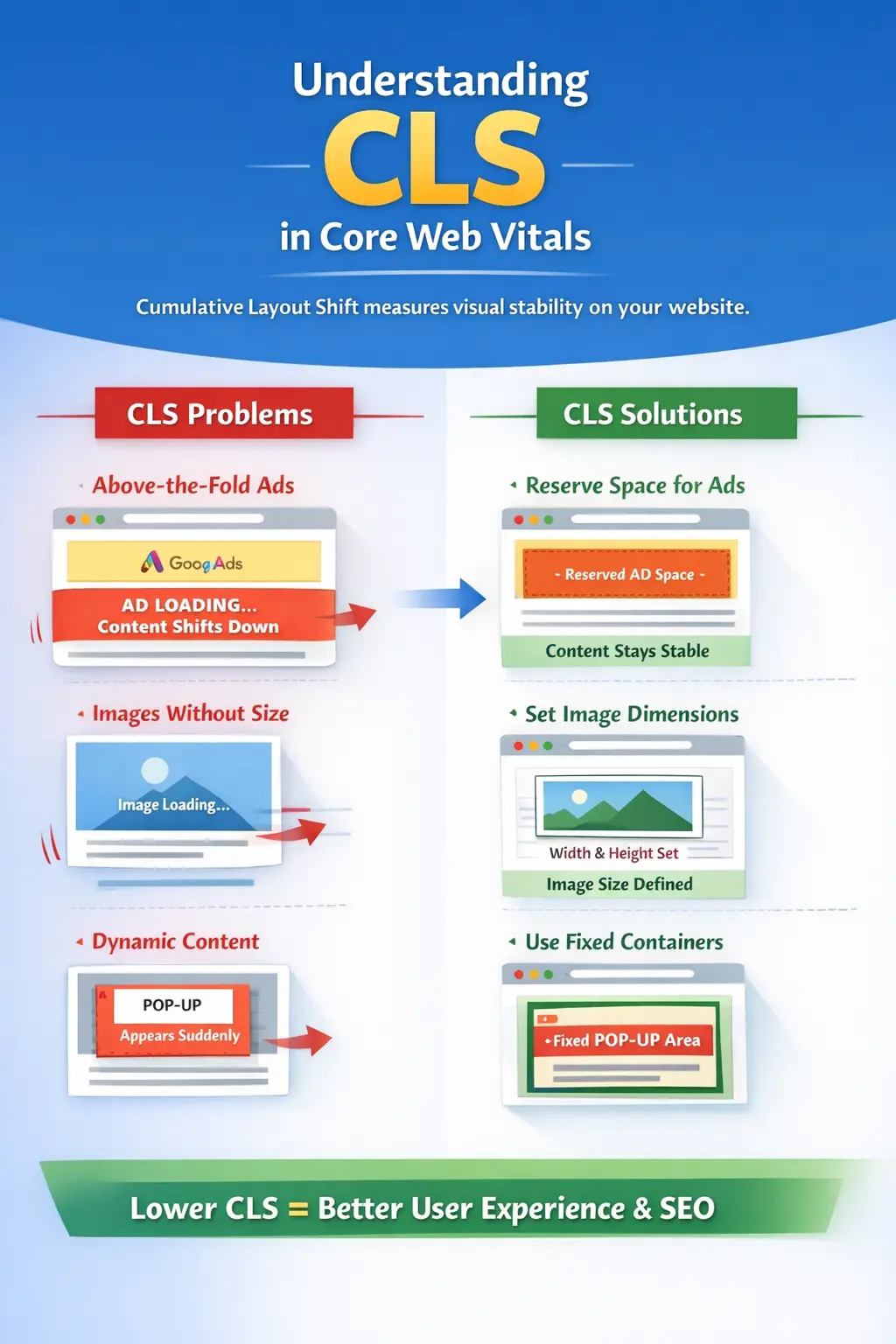

What is CLS in Core Web Vitals?
CLS (Cumulative Layout Shift) measures unexpected movements of page elements while a page loads. A low CLS ensures users don’t accidentally click the wrong buttons or links. Optimizing CLS improves both user experience and SEO.
5 Tools to Test Your Cumulative Layout Shift (CLS)
Monitoring and improving CLS is easier when you use the right tools. Here are five reliable options I recommend:
-
Lighthouse – Built into Chrome DevTools, Lighthouse provides a detailed CLS report along with other Core Web Vitals metrics.
-
PageSpeed Insights – Analyze your site’s CLS and overall performance with Google’s official tool: https://pagespeed.web.dev/
-
Web Vitals Tester – Test and track Core Web Vitals, including CLS, with this intuitive tool: https://www.debugbear.com/test/core-web-vitals
-
Layout Shift GIF Generator – Visualize layout shifts on your site with animated GIFs for easier debugging: https://defaced.dev/tools/layout-shift-gif-generator/
-
Cumulative Layout Shift Debugger – Inspect and debug CLS issues on your pages in real time: https://webvitals.dev/cls
What is CLS in Core Web Vitals and Why It Matters
As someone who has optimized hundreds of websites, I’ve learned that CLS (Cumulative Layout Shift) is one of the most overlooked but crucial metrics in Core Web Vitals. Unlike loading speed, CLS focuses on visual stability — ensuring that the content users see doesn’t jump around unexpectedly.
If you’re about to click the “Buy Now” button on an e-commerce site, but suddenly the page shifts, and your click lands on an ad instead. Frustrating, right? That’s exactly what a high CLS score measures.
CLS Scores Explained:
-
Good: ≤ 0.1
-
Needs Improvement: 0.1 – 0.25
-
Poor: > 0.25
A low CLS is essential because Google uses it as a ranking factor. Websites with higher visual stability not only offer better user experience but also tend to rank better in search results.
Common Causes of High CLS
Based on my experience, the main causes of high CLS include:
1. Images and Videos Without Dimensions
When images or videos don’t have set width and height, the layout jumps as they load.
Fix: Always set explicit width and height in HTML or use CSS aspect-ratio.
2. Dynamic Content Injection
Pop-ups, banners, and auto-loaded content shift the layout unexpectedly.
Fix: Reserve space in advance with placeholder containers or CSS min-height.
3. Web Fonts (FOIT/FOUT)
Slow-loading fonts can cause text resizing and layout shifts.
Fix: Use font-display: swap and preload key fonts.
4. Above-the-Fold Google Ads & Auto Ads
This is a major CLS culprit. Google Ads that load after the main content can push text and buttons downward. Even Auto Ads, which dynamically insert themselves into the page, can create significant layout shifts.
Example from my work:
On a blog I managed, the CLS score was 0.32 because of Auto Ads appearing above the fold. Users were trying to click navigation links, but ads pushed the links down as they loaded.
Solution:
-
Reserve ad slots using fixed
min-height. -
Use CSS containers to ensure ads don’t push other content.
-
Consider lazy-loading ads below the fold when possible.
5. User Interaction Triggers
Accordions, expandable menus, or content loaded after clicks can cause shifts.
Fix: Animate transitions smoothly or allocate fixed space for expandable elements.
Example
I recently audited an e-commerce website with a CLS of 0.37. The main issues were:
-
Above-the-Fold Google Ads loading dynamically
-
Unoptimized product images without dimensions
-
Pop-up newsletter signups
After implementing the following:
-
Defined width and height for all images and videos
-
Reserved space for Auto Ads and above-the-fold banners
-
Set fixed space for pop-ups
The CLS dropped to 0.08. The result? Better user experience, fewer accidental clicks, and improved engagement metrics.
How to Test CLS
You can measure CLS using:
-
Google PageSpeed Insights: Checks CLS score for desktop and mobile
-
Chrome DevTools Performance Tab: Records layout shifts in real time
-
Web Vitals Chrome Extension: Quick, on-page analysis
Tip: CLS measures all layout shifts during the entire page lifecycle, not just during initial load. This includes shifts caused by ads, font swaps, and dynamic content.
Best Practices to Reduce CLS
-
Always Specify Size for Images/Videos
Set width, height, or aspect-ratio in CSS. -
Preload Fonts and Use
font-display: swap
Avoid layout shifts due to delayed font loading. -
Reserve Space for Ads
Above-the-fold Google Ads or Auto Ads should have reserved containers. -
Avoid Injecting Content Above Existing Content
Always load dynamic content below the fold or in allocated spaces. -
Animate Interactive Elements Smoothly
Avoid abrupt shifts from accordions or expandable menus. -
Monitor Third-Party Scripts
Scripts that dynamically load content or ads often cause unexpected layout shifts.
Conclusion
CLS might seem like a small metric, but in reality, it has a major impact on both user experience and SEO. From my experience, addressing CLS — especially with Above-the-Fold Ads and Auto Ads — leads to smoother browsing, fewer accidental clicks, and improved engagement. Optimizing CLS isn’t just about pleasing Google; it’s about creating a stable, trustworthy experience for your users.

